Clever.com Explained: Student Login, Features, and Safety
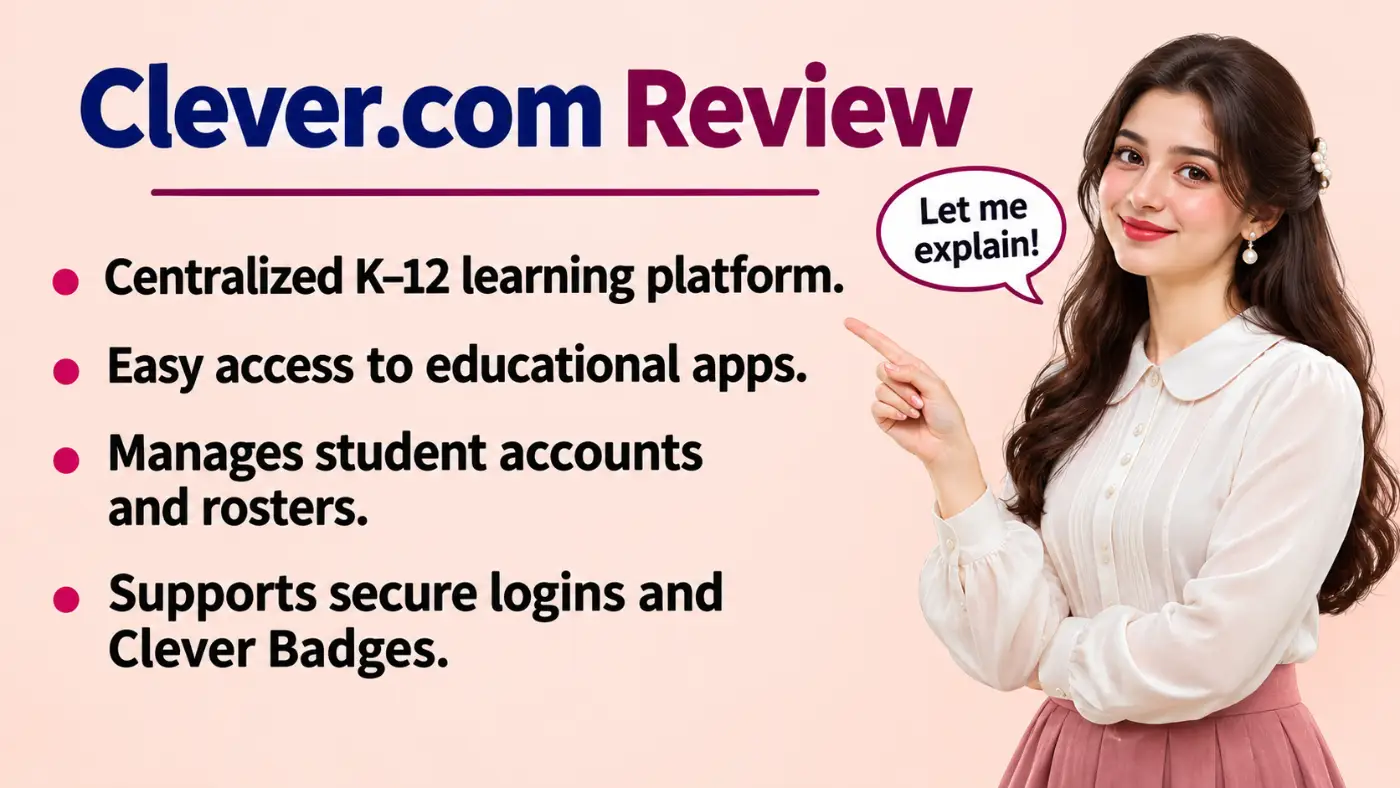
Clever com is an educational technology platform that helps US K–12 students, teachers, and schools access digital learning applications through a centralized system. Rather than requiring students to find every classroom application separately, Clever provides a school-managed portal that can simplify sign-ins and organize learning resources.
Schools use Clever to connect student accounts, classroom rosters, and approved educational applications. Depending on district settings, students may sign in with school credentials, a connected identity provider, or a Clever Badge.
This guide explains how Clever works, how students access their accounts, what teachers and administrators can manage, and how families can resolve common login problems. It also examines student privacy, pricing, and the differences between Clever and classroom learning platforms.
Related Post: quikernews com
What Is Clever.com and What Is It Used For?
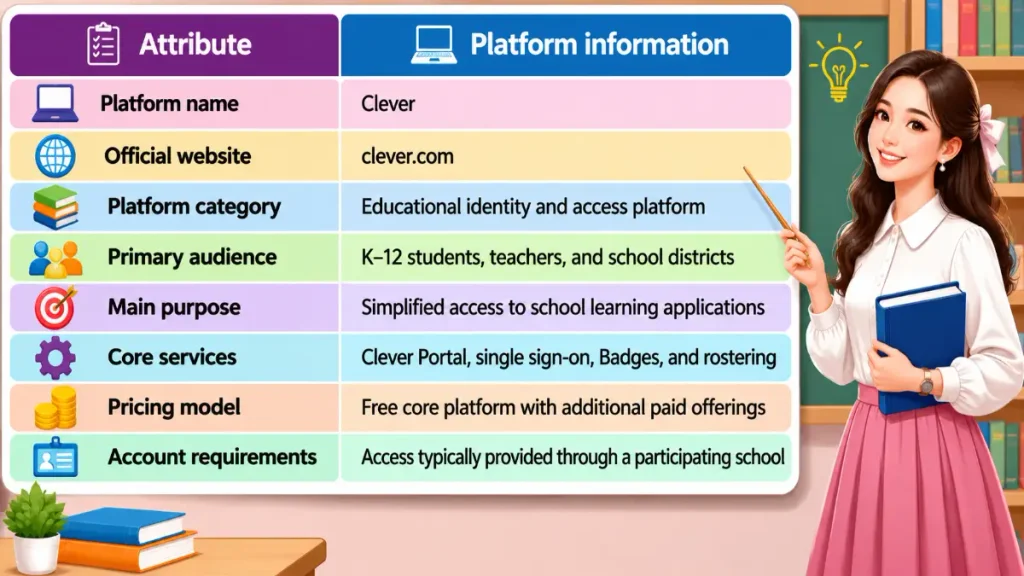
Clever.com is an educational identity and access platform designed primarily for K–12 schools. It connects school-managed user accounts with digital educational resources.
The platform helps students reach applications their schools have approved. Teachers can access classroom resources, while district technology teams manage account connections and application access.
Clever is not a complete learning management system. It does not replace every tool schools use for assignments, grading, instruction, or communication.
Students generally cannot create an independent school account simply by registering on the public website. Their school or district controls the relevant access arrangements.
How Does Clever.com Work for Schools?
Clever connects three important elements: school identities, enrollment information, and educational applications.
A school district establishes its Clever environment and configures the applications students and teachers can use. Clever then helps connect the appropriate accounts and classroom information.
Single Sign-On Technology
Single sign-on (SSO) allows users to access supported applications through an established authentication process.
Instead of manually entering separate credentials for every connected service, students can open supported applications through Clever Portal.
The exact sign-in experience depends on how the school configures its systems and how individual application integrations work.
Connecting School Learning Applications
Schools can connect Clever with participating educational applications used for reading, mathematics, classroom activities, and other subjects.
Clever also supports automated rostering, which helps participating applications receive appropriate enrollment and classroom information.
However, each district decides which applications to implement. Clever does not automatically provide every educational product available in its integration ecosystem.
Personalized Student and Teacher Dashboards
Clever Portal presents resources based on a user’s school account and assigned permissions.
For example, a fifth-grade student might see reading and mathematics applications selected by the school. A teacher might see classroom resources and additional tools relevant to their teaching responsibilities.
The portal’s contents vary by district, school, and user.
How to Log In to Clever.com as a Student
Students should follow their school’s official login instructions because Clever supports different authentication arrangements.
A typical login process involves these steps:
- Open the official Clever website or the portal address supplied by the school.
- Select the school’s login option and identify the school or district if prompted.
- Choose the authentication method configured by the school.
- Enter school-issued credentials, use an approved connected account, or scan a Clever Badge when supported.
- After authentication, open the assigned learning application from Clever Portal.
Some districts use Google or Microsoft accounts. Others provide district-managed usernames and passwords or alternative sign-in methods.
There is no universal Clever student password. If a student cannot sign in, the school should provide the correct account instructions.
Students should avoid entering their credentials on unfamiliar websites that imitate school login pages.
How Teachers Access and Use Clever
Teachers generally access Clever through their district-managed accounts.
Depending on their permissions and school configuration, they can open instructional applications, organize accessible resources, and help students navigate classroom tools.
Some Clever classroom features also support the distribution and organization of digital resources.
Teachers may be able to customize certain portal experiences, but they do not automatically control district-wide integrations, account provisioning, or security settings.
Those responsibilities generally belong to school or district administrators.
Key Features of Clever.com Explained
The platform offers several connected features that simplify access to digital learning resources and support school technology management.
Clever Portal
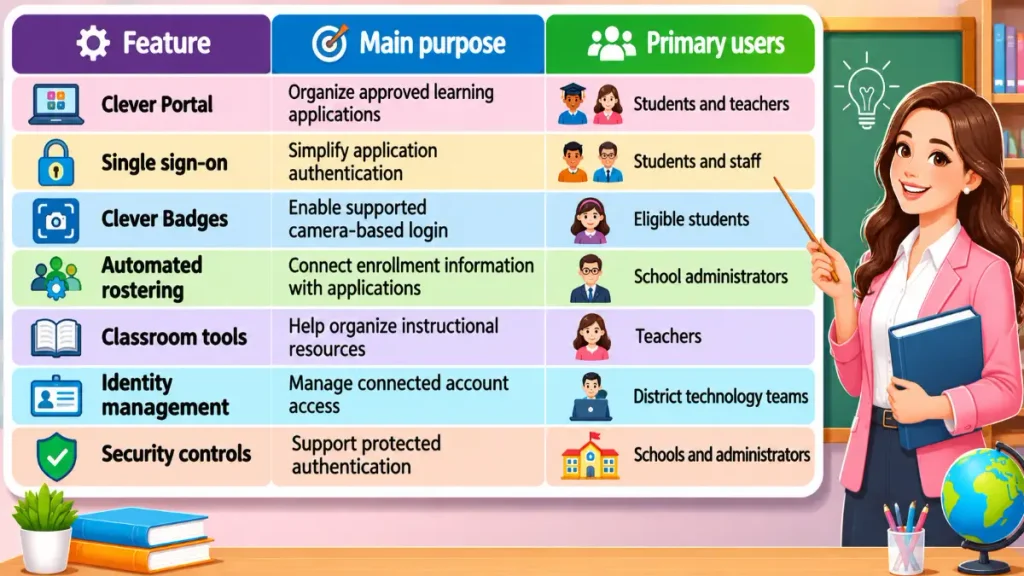
Clever Portal serves as a centralized dashboard for school-approved educational applications. Students can easily find and open their assigned learning resources without remembering separate website addresses. This streamlined system makes navigating classroom tools more convenient.
Single Sign-On
Clever’s single sign-on capabilities simplify access to participating applications. However, not every application necessarily supports the same authentication arrangement, and some services may require additional steps.
Clever Badges
Clever Badges offer a camera-based sign-in method for eligible school accounts. They can help younger students access learning resources without repeatedly typing lengthy usernames and passwords.
Automated Rostering
Automated rostering helps schools share appropriate enrollment and classroom information with connected applications. This can reduce repetitive account setup and help applications reflect school-managed classroom assignments.
Digital Classroom Tools
Clever provides classroom-oriented resource access and organization features. These tools help teachers and students navigate learning applications but do not replace all teaching, grading, or assignment-management systems.
Identity and Access Management
Clever supports school-controlled identities and application access. District administrators remain responsible for configuring appropriate permissions, integrations, and account arrangements.
Security and Multi-Factor Authentication
Clever offers security capabilities for supported identity workflows, including multi-factor authentication options for applicable accounts and configurations. Multi-factor authentication adds another verification step, but availability and requirements depend on account type and district settings.
What Are Clever Badges and How Do They Work?
A Clever Badge is a school-issued visual credential that eligible students can hold in front of a device camera to sign in.
This method is particularly useful for young children who struggle with typing passwords. Students select the supported Badge login option, permit camera access when prompted, and present their Badge for scanning.
A Badge should be treated like a password. Students should not share photographs of it publicly or leave it where unauthorized people can use it.
If a Badge disappears, families should notify the teacher or school technology team. Authorized school personnel can invalidate a missing Badge and issue a replacement.
How to Use Clever.com for Learning at Home
Students can often access their assigned resources from home using the same school-managed Clever account.
Families should first obtain the correct portal address and login instructions from their school. A compatible device, reliable internet connection, and the appropriate authentication method may also be necessary.
Some applications have additional access restrictions, subscriptions, or device requirements.
When home access fails, check the school instructions, browser permissions, and internet connection before contacting the teacher.
Home access does not guarantee access to every classroom resource.
Is Clever.com Safe and Legitimate?
Is Clever a Real Educational Platform?
Yes. Clever is an established educational technology service operated by Clever Inc., which provides identity, rostering, and application-access products for schools.
Its official website includes product documentation, support resources, pricing information, and privacy disclosures.
How Clever Protects Student Information
Clever describes administrative, technical, and physical safeguards intended to protect student information.
Its privacy documentation explains that districts control which applications receive authorized student data. Clever also describes contractual requirements for participating application partners.
Student Privacy and Data Sharing
According to its published privacy commitments, Clever does not sell or rent student data or display advertising to students on its platform.
However, schools and families should also examine the privacy practices of individual connected educational applications.
Account Security and Safe Login Practices
Students should use official school-provided login pages, keep credentials private, and report suspicious sign-in requests.
| Security consideration | What families should know |
|---|---|
| School-managed accounts | Districts configure student access |
| Data sharing | Schools authorize connected applications |
| Clever Badges | Treat them as sensitive credentials |
| Multi-factor authentication | Available through applicable configurations |
| Third-party applications | Their separate privacy practices still matter |
Security controls reduce risks, but no online service can guarantee complete protection.
Is Clever.com Free or Paid?
Clever’s core digital learning platform is free for schools. Its published free offering includes rostering, single sign-on, Clever Portal, and related platform capabilities.
Clever also offers optional paid products, including Clever IDM for identity management and Classroom MFA for additional authentication security. Schools can request pricing for these products.
Students typically access Clever through their schools rather than purchasing personal subscriptions.
Separate educational applications may have their own licensing costs. A free Clever account does not make every connected application free.
Common Clever Login Problems and Solutions
Most access problems involve account credentials, school settings, browser permissions, or individual application availability.
| Problem | First troubleshooting step |
|---|---|
| Incorrect password | Check school-issued credentials; request school assistance |
| School missing from search | Confirm the school’s official portal address |
| Clever Badge not working | Check camera access and Badge visibility |
| Missing learning application | Ask the teacher whether it is assigned |
| Repeated login redirects | Retry through the official school portal |
| Browser access problems | Update the browser and check required permissions |
| Home access unavailable | Confirm school rules and device requirements |
Avoid repeatedly guessing passwords or changing security settings without school guidance.
If the issue continues, contact the teacher or district technology support team. Schools control many of the settings that determine whether students can sign in successfully.
Clever.com vs Google Classroom: What’s the Difference?
Clever and Google Classroom address different educational needs.
Clever primarily connects school identities and learning applications. Google Classroom primarily organizes classroom assignments, instructional materials, and communication.
| Comparison | Clever | Google Classroom |
|---|---|---|
| Primary purpose | Identity and application access | Classroom learning workflows |
| Typical users | Students, teachers, administrators | Students and teachers |
| Login functions | Centralized access to connected apps | Uses Google account authentication |
| Assignment management | Not its primary function | Core functionality |
| Application integrations | School-managed learning app connections | Google Workspace and supported tools |
| Administration | District identity and roster management | Classroom and Google Workspace administration |
A school can use both platforms. Students might access Google Classroom through a school-configured Clever connection, then complete assignments within Classroom.
Neither product automatically replaces the other.
Who Benefits Most From Using Clever?
Elementary School Students
Young learners benefit from a familiar portal and, where enabled, camera-based Badge login. These features can reduce time spent entering credentials.
Middle and High School Students
Older students can use the portal to reach assigned educational applications across different subjects.
Teachers
Teachers benefit from organized resources and access to connected classroom applications. Available management tools depend on their permissions.
Parents and Guardians
Families gain a clearer starting point for school-approved digital resources, although schools remain the primary source of account support.
School IT Administrators
Technology teams can use Clever’s rostering, integrations, and identity capabilities to manage digital access across participating schools.
Clever.com Advantages and Limitations
Clever’s main advantage is centralized access to school-approved learning resources.
It can reduce repeated sign-ins, support classroom organization, and simplify account management for districts.
However, the experience depends heavily on school configuration. Students cannot independently enable unavailable applications, change district permissions, or fix every account problem.
Internet connectivity, browser compatibility, third-party application behavior, and school support also influence usability.
What Happens After a Student Logs Into Clever?
Consider a hypothetical student named Alex.
After signing in through the school portal, Alex sees several assigned learning applications. Alex selects a reading application, which opens through the configured integration.
Later, Alex returns to Clever Portal and selects a mathematics resource.
This example illustrates a typical workflow. Actual screens, applications, and authentication steps vary by school.
Why Can’t Students See Every Learning App in Clever?
Clever displays resources according to school configuration, permissions, and application availability.
An application may be missing because the district has not enabled it, the student lacks an assignment, or classroom roster information has not yet updated.
Some resources may also appear only for particular grades or classes.
A missing application does not necessarily indicate a technical failure. Students should ask their teacher whether they should have access before attempting other fixes.
What Parents Should Know Before Their Child Uses Clever
Parents should keep the school’s official login instructions accessible and help younger children protect their credentials.
They should also understand that Clever is a gateway to other educational applications, each of which may handle student information differently.
If a child receives an unexpected login request, loses a Badge, or cannot access assigned work, the safest starting point is the school.
Parents should not attempt to create replacement school accounts independently.
When Clever Is Useful and When It Is Not Enough
Clever is useful when schools need to simplify student authentication, organize access to educational applications, and manage classroom account connections.
It is not sufficient by itself for every instructional task.
Teachers still need appropriate learning applications for lessons, assessments, assignments, and specialized classroom activities.
Clever works best as part of a broader school technology environment rather than as a replacement for all educational software.
Frequently Asked Questions
Can students access their school apps from home?
Yes, many students can access assigned applications from home through their school-managed Clever Portal. However, availability depends on district settings, application licenses, and device requirements. Families should follow their school’s official home-access instructions.
Do children need separate passwords for every learning application?
Not always. Clever’s single sign-on technology allows students to open supported applications after authenticating through their school account. Some applications may require additional authentication or separate access arrangements, depending on how the district has configured them.
Can parents create Clever accounts independently?
Parents generally cannot create ordinary student accounts independently because schools manage student identities and access permissions. A school must establish the appropriate account arrangements. Parents seeking access information should contact their child’s teacher or school technology department.
Why is a school missing from the login page?
The student may be searching under an incorrect school name or using the wrong login page. Some districts provide dedicated portal addresses. Families should verify the official instructions with their school rather than selecting an unfamiliar organization.
What should students do when their password stops working?
Students should check that they are using the correct school account and authentication method. If the problem continues, they should contact their teacher or district technology support team for approved recovery instructions instead of repeatedly guessing passwords.
Can teachers choose which resources appear in the portal?
Teachers can organize certain classroom resources when their district grants the appropriate permissions. However, administrators control broader application availability and district integrations. A teacher cannot necessarily enable every application independently.
Does the platform work with Google Classroom?
Clever can work alongside Google Classroom when a school configures the appropriate integration or access arrangement. Clever helps students reach connected resources, while Google Classroom handles assignments and classroom communication. The exact experience depends on district settings.
Can younger students sign in without typing passwords?
Yes. Schools can enable Clever Badges for eligible students, allowing them to authenticate by scanning a school-issued visual credential with a compatible camera. The school determines whether Badge login is available and manages replacement credentials.
Who should families contact when access is unavailable?
Students should usually contact their classroom teacher first. For account permissions, authentication errors, missing applications, or unresolved technical issues, the school or district technology team is the appropriate support contact because it manages the relevant account settings.

Sophia Bennett writes educational content about English vocabulary, grammar, slang, and communication. She is passionate about making complex language topics accessible to students, professionals, and curious readers around the world.