
JoinCRS Com: Join Classroomscreen With Codes Safely
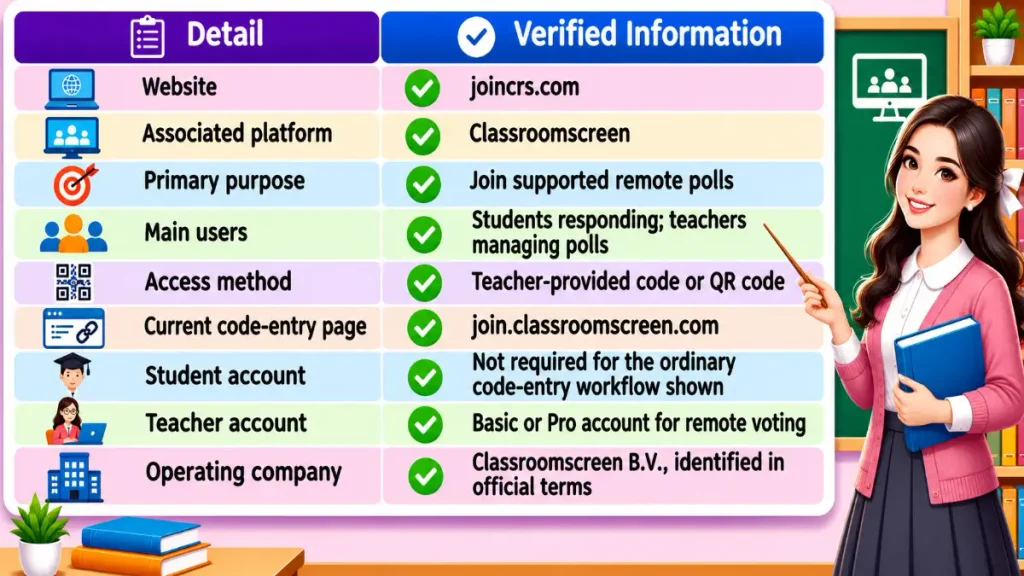
joincrs com is a student-facing address associated with Classroomscreen, a web-based classroom display and teaching tool. Its main purpose is to let students participate in a teacher’s supported remote poll using a code or QR code. It is not a separate homework portal, online school, or full learning management system.
Teachers create and control the poll from Classroomscreen, while students use the joining page to submit responses from their devices. The process is straightforward, but an incorrect code, closed poll, or school network restriction can interrupt it. This guide explains the official relationship, student and teacher steps, common problems, privacy considerations, and realistic classroom uses without confusing the joining page with the wider teaching platform.
Related Post: gonzay com
What Is JoinCRS Com and What Does It Actually Do?
JoinCRS.com provides access to Classroomscreen’s remote polling experience. Classroomscreen offers teachers a digital display with classroom widgets, including a Poll widget. When teachers enable remote voting, students can respond from their own browsers instead of voting only on the teacher’s display.
A code does not create a new class or automatically open every Classroomscreen activity. It connects students to the relevant supported poll when the teacher has enabled that function.
Is JoinCRS Com an Official Part of Classroomscreen?
Yes. Classroomscreen’s official Terms and Conditions explicitly include joincrs.com among its web-based applications. The company’s Poll help article also tells students to visit that address and enter the code displayed on the classroom screen. These primary sources provide stronger evidence of the relationship than an unrelated review page.
The current official code-entry interface is also available at join.classroomscreen.com. It displays a code field and a Go button, along with a separate option for teachers to sign in. Classroomscreen’s technical documentation identifies that joining subdomain as the application for Poll widget remote voting.
Students should check the address carefully. A website that contains similar words, added punctuation, or an unfamiliar ending is not necessarily affiliated with Classroomscreen. If a search result seems suspicious, ask the teacher for the exact joining address.
How to Join a Classroomscreen Poll Using JoinCRS Com
The joining process begins with the teacher. Students cannot generate a valid poll code on their own.
- Get the current code. Look at the teacher’s display or ask the teacher to provide it.
- Open a browser. Use the browser available on your school device, laptop, tablet, or phone.
- Visit the joining page. Enter joincrs.com or the official join.classroomscreen.com address.
- Find the code field. The current official interface labels it “Enter the code.”
- Type the code carefully. Match the teacher’s display rather than assuming a fixed number of digits.
- Select Go. Follow any additional instructions that appear for the active poll.
- Choose and submit your response. Check that you selected the intended answer before finishing.
The exact screens after code entry can depend on the poll and the current application version. This guide does not claim that a live classroom session was tested.
Joining With a QR Code
Classroomscreen’s Poll documentation describes a QR code beside the displayed joining code when remote voting is enabled. Students can scan it with a compatible device camera and follow the resulting prompt. If scanning fails, manually enter the code instead. Never install an unfamiliar scanner application solely because a third-party page tells you to do so.
How Teachers Can Set Up Remote Voting
Teachers manage participation through Classroomscreen, not through the student code-entry page. Official help materials confirm that remote voting is available to Basic and Pro account holders. A free Basic account can therefore provide this capability; Pro is not universally required for remote polls.
A practical setup sequence follows:
- Sign in to the teacher-facing Classroomscreen account.
- Open a screen and add or select the Poll widget.
- Choose the appropriate question format and enter the question.
- Add answer options when the chosen format requires them.
- Open the Poll widget settings and enable remote voting.
- Display the joining code or QR code where students can see it.
- Allow students enough time to connect and submit their answers.
- Review the responses using the widget’s available display options.
Classroomscreen documents multiple-choice, smiley, and true-or-false polling. It also describes bar, pie, and doughnut charts for displaying results. Not every classroom widget accepts student codes. A timer, drawing area, or other display tool should not be treated as a JoinCRS activity merely because it appears on the same screen.
What Happens After Students Submit Their Votes?
Students select an answer in the active poll, and the teacher can display the collected results. The purpose is to gather quick classroom feedback, not necessarily to create a permanent individual assessment record.
Classroomscreen’s Poll help documentation says teachers can reset votes through the widget or its settings. A reset allows a student who already voted remotely to vote again. The documentation also describes an option to undo a reset. Teachers must reset votes before changing a question type after answers have been submitted.
Students should not assume they can revise a response whenever they want. The teacher controls the activity, and a reset is different from a student editing an individual vote. If the poll closes or stops accepting answers, ask the teacher whether participation can reopen.
JoinCRS Com Features and Practical Classroom Uses
The verified student-facing feature is browser-based remote voting. It works alongside the Poll widget, which supports several simple question formats. The QR option offers another way to reach the same participation experience.
Teachers can use the results to start discussion, adjust their explanations, or decide whether another example would help. These are possible instructional uses, not promises that the software will improve grades or learning outcomes.
The wider Classroomscreen platform includes many classroom-display tools, but JoinCRS should not receive credit for features it does not directly provide. Its role is narrower: helping students reach a supported poll and respond.
JoinCRS Com Not Working? Common Problems and Solutions
Most joining difficulties fall into two categories: issues students can check locally and settings only the teacher or school administrator can change.
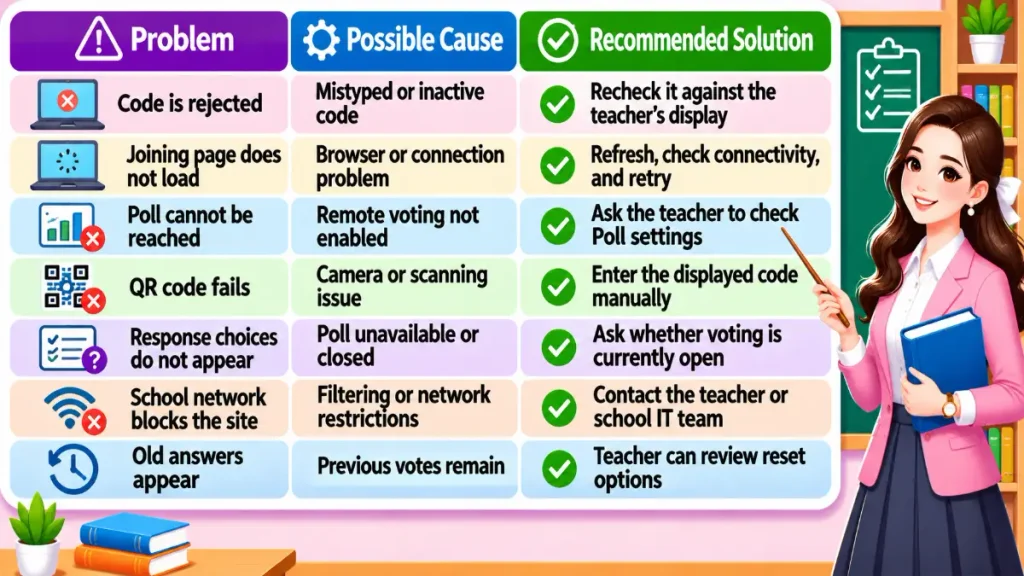
If the Code Does Not Work
If the Page Loads but No Poll Appears
Confirm that the teacher enabled remote voting and that the poll remains active. Students cannot solve a disabled Poll setting from the joining page. The teacher should inspect the widget before issuing another code.
If the School Blocks Access
Is JoinCRS Com Safe and Legitimate for Students?
The official Classroomscreen association is documented, which is a meaningful authenticity signal. Its published terms identify the company, and its privacy policy covers joincrs.com alongside its other domains. Those facts support using the authentic page for a teacher-led activity, but no website should receive an unconditional safety guarantee.
Classroomscreen’s privacy policy states that visits can generate information such as IP address, browser details, and access time, even when someone does not have an account. Account holders may provide additional details. The policy also identifies external infrastructure and analytics providers.
Teachers and administrators should review the school’s own privacy requirements before using any classroom technology. Do not assume universal compliance with FERPA, COPPA, GDPR, or local school rules merely because a provider publishes a privacy policy.
Students should use only the code supplied by their teacher, avoid entering passwords on unfamiliar pages, and report unusual requests for payment or personal details. A normal student poll entry should not require purchasing a subscription. The teacher’s account arrangements are separate from the student’s participation.
What JoinCRS Com Cannot Do
JoinCRS is not a full student learning management system. Its joining page does not establish a service for submitting homework, viewing report cards, tracking attendance records, or browsing complete online courses.
A poll can reveal group understanding, yet it should not automatically replace graded assignments or tools designed for individual progress tracking. If a teacher needs named responses, detailed scoring, or stored student work, the school should evaluate an assessment system with those specific capabilities.
JoinCRS Com vs. Kahoot, Mentimeter, and Google Forms
These services overlap in classroom feedback but have different primary purposes. Comparing them helps teachers select the right workflow without assuming one product fits every lesson.
| Service | Primary purpose | Typical student access | Main classroom use |
|---|---|---|---|
| JoinCRS / Classroomscreen Poll | Quick remote voting on a teacher’s screen | Code or QR code | Brief checks and feedback |
| Kahoot | Interactive quizzes and learning activities | Game PIN or assigned access | Quiz-based participation |
| Mentimeter | Interactive presentations and audience input | Presentation code or joining link | Polls and live presentation feedback |
| Google Forms | Online forms, questionnaires, and quizzes | Shared form link | Surveys and collected responses |
JoinCRS fits a teacher who already uses Classroomscreen and wants a short poll integrated into the classroom display. Kahoot may suit a quiz-centered activity, while Mentimeter can support presentation-oriented audience interaction. Google Forms can be useful when the teacher needs a structured form rather than a brief live vote.
Best Practices for Teachers Using JoinCRS in Class
Start with a clear, readable question and display the joining code long enough for students to enter it. If some students do not have suitable devices, provide a classroom alternative rather than making personal device ownership a condition of participation.
Test the setup before the lesson, particularly remote voting settings and school network access. Allow students a short connection period, then explain how and when to submit answers. Avoid collecting identifying information unless the activity genuinely needs it and school policy permits it.
When reviewing results, explain that a quick poll represents the responses submitted during that activity. It may not capture every student’s understanding, especially when connectivity or accessibility barriers prevent participation. Before closing the activity, check whether students still need time or whether a reset is appropriate.
Frequently Asked Questions About JoinCRS Com
What is the purpose of the Classroomscreen joining page?
It lets students enter a teacher-provided code to access a supported Classroomscreen poll. The teacher creates and controls the activity on the main platform. The joining page is intended for participation, not for building lessons, creating student accounts, or accessing a complete course system.
Where can students find their classroom code?
The teacher displays the code when remote voting is enabled in the Poll widget. Students may also see a QR code for joining. If neither appears, ask the teacher to check the widget settings rather than searching online for a reusable code.
Can students participate without creating an account?
The official student joining interface provides a code-entry field without showing a required student sign-up step. Teacher account requirements differ: Classroomscreen documents remote voting for Basic and Pro accounts. Schools should still review any additional instructions displayed during their particular activity.
Is joining a classroom poll free?
The documented student code-entry workflow does not advertise a student payment step. Teachers can access remote voting through the free Basic account or a Pro account. Students should question any unrelated website that asks for money before allowing them to enter a teacher’s poll code.
Can the website be used on smartphones?
Classroomscreen’s official Poll guidance describes students using their own devices and offers a QR-code option. Smartphones with a compatible browser and camera can be suitable, subject to school policies, device restrictions, and connectivity. If the interface fails, ask the teacher for an alternative.
Why might a teacher’s code stop working?
The code might have been entered incorrectly, the activity might no longer be available, or the teacher may have changed the poll setup. The official materials do not establish a universal code expiration period. Ask the teacher to confirm the current displayed code and voting status.
Can students join after the poll closes?
Do not assume a closed poll accepts new responses. The teacher controls the activity and can check whether remote voting remains enabled. Classroomscreen documents resetting votes, but that is not the same as a guarantee that every closed session can be reopened for late participants.
Does JoinCRS provide homework or grades?
No such functions are established for the student joining page. Its documented purpose is remote poll participation. A school may use other applications for homework, assignments, grades, and student records. Ask your teacher which official system handles those responsibilities.
Can teachers see submitted poll responses?
Teachers can display collected poll results in several chart formats. However, do not assume that every individual response is linked to a named student or that all votes are anonymous in every setting. Review the current Poll documentation and school guidance for the specific activity.
What if a school network blocks the joining page?
Tell the teacher or school technology team which official address fails to load and what error appears. Classroomscreen provides domain information for network administrators. Avoid bypassing school filters or using unofficial mirrors; administrators can assess whether the relevant domains should be allowed.
Final Verdict: When Should You Use JoinCRS Com?
JoinCRS com is an official Classroomscreen-associated route for supported classroom poll participation. Students need the current teacher-provided code or QR code, while teachers must enable remote voting through the Poll widget. Official documentation confirms availability for Basic and Pro account holders.
The service is useful for short understanding checks, lesson feedback, and class discussions. It does not replace homework platforms, gradebooks, or full learning management systems. Students should confirm the exact joining address, and schools should review privacy practices and network requirements before widespread use. For a teacher-led poll, the official code-entry page offers a focused and practical participation workflow.

Sophia Bennett writes educational content about English vocabulary, grammar, slang, and communication. She is passionate about making complex language topics accessible to students, professionals, and curious readers around the world.